How to connect Amazon Seller Central and Amazon Ads
Connect Seller Central (SP-API) and Amazon Ads to RedHen Labs, with screenshots: your marketplaces, your ad profile, the first sync, and reconnecting.
RedHen Labs reads your Amazon account through two connections, each approved on Amazon's own pages: Seller Central (Amazon's Selling Partner API, or SP-API) for orders, sales, inventory and fees, and Amazon Ads for campaigns and ad reports. RedHen Labs never sees your Amazon password.
Start with Seller Central: profit and review requests are built on it, and it is the only connection the Review plan needs. Then connect Amazon Ads to manage your ads and take your ad spend out of your profit. This guide does both, with a screenshot of each step (the control to use is ringed and numbered). It takes about five minutes.
Step 1 · Open Settings
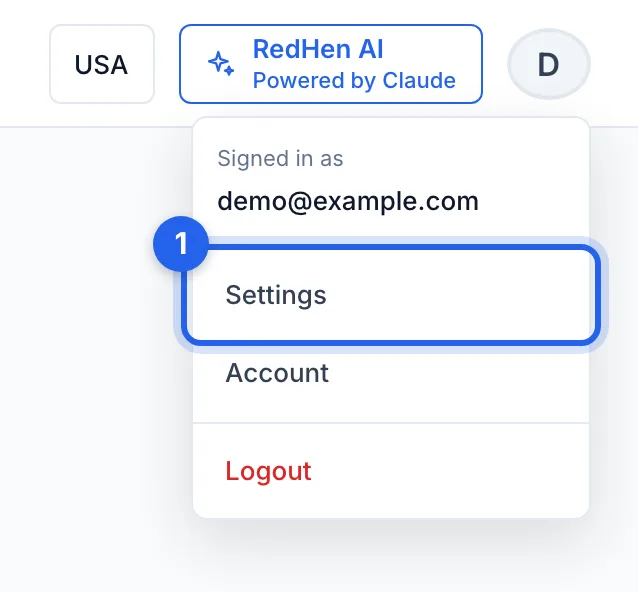
Click your initial at the top right of any page and choose Settings (1). The button beside it (USA here) switches between the marketplaces you connect.
Step 2 · Connect Seller Central
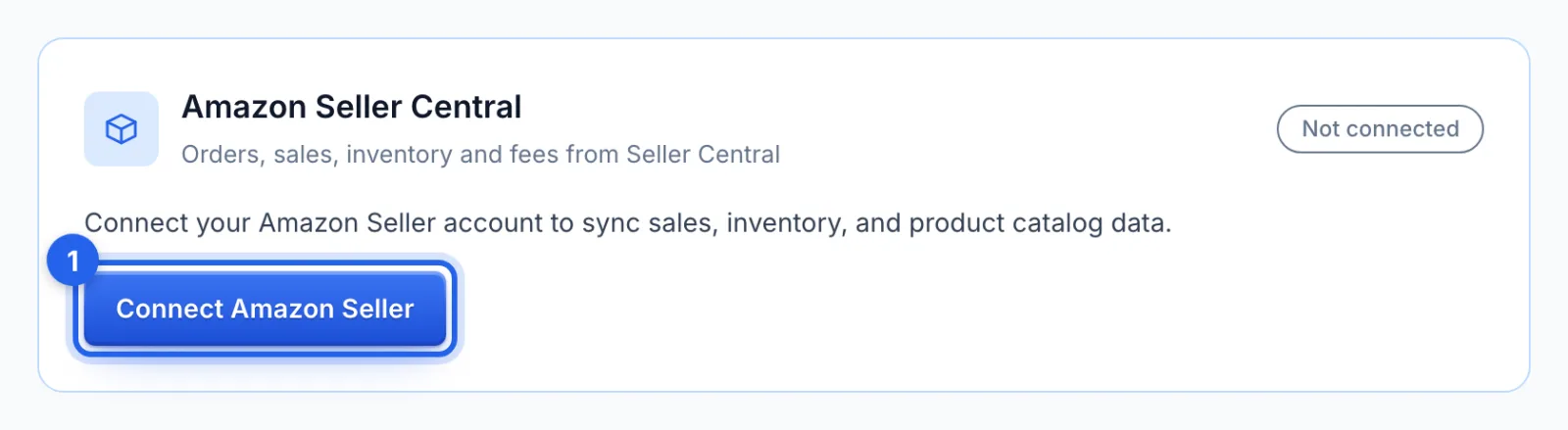
On the Amazon Seller Central card, click Connect Amazon Seller (1). Seller Central opens: sign in with your seller account, approve RedHen Labs, and you're brought back. RedHen Labs never sees your Amazon password. On a phone, a short checklist comes first, with a link to finish on a computer instead.
Step 3 · Enable the marketplaces you sell in
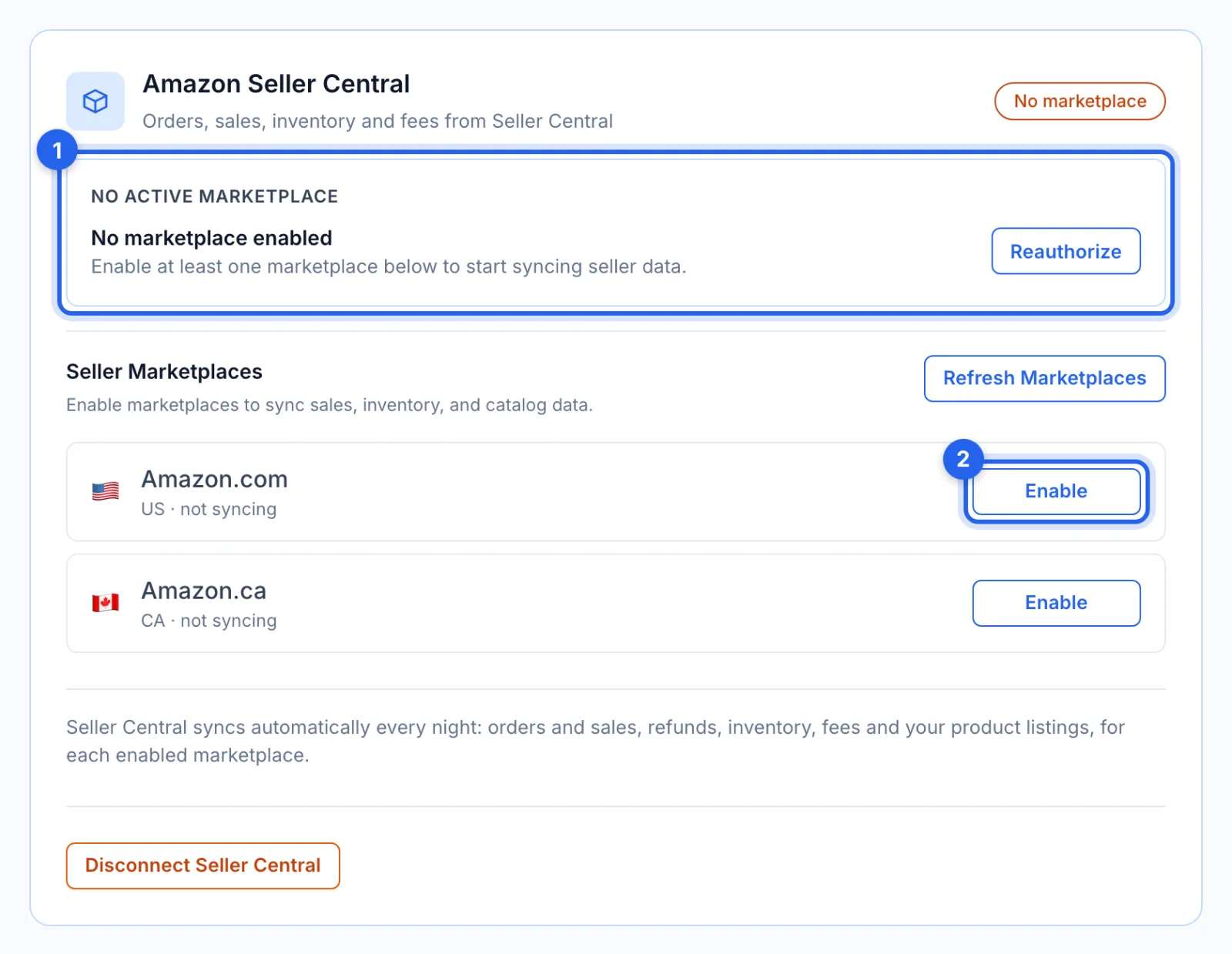
If you chose review requests when you signed up, the marketplaces you picked are switched on for you and you land on the Reviews page. Otherwise the card says no marketplace is on yet (1): click Enable (2) for each marketplace you sell in.
Step 4 · Confirm, and choose about review requests
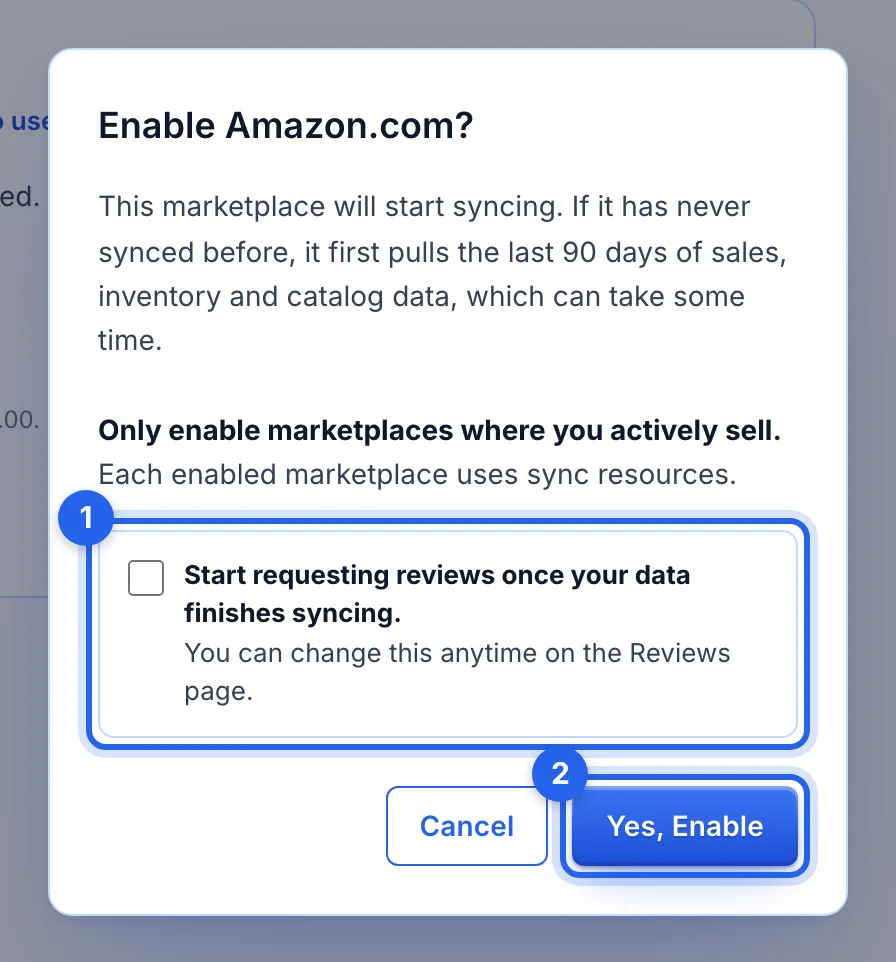
A marketplace that has never synced first brings in its last 90 days of sales, inventory and catalog data. Tick the box (1) to start review requests once that is done; it starts unticked, and you can change it any time on the Reviews page. Click Yes, Enable (2).
Step 5 · Connect Amazon Ads
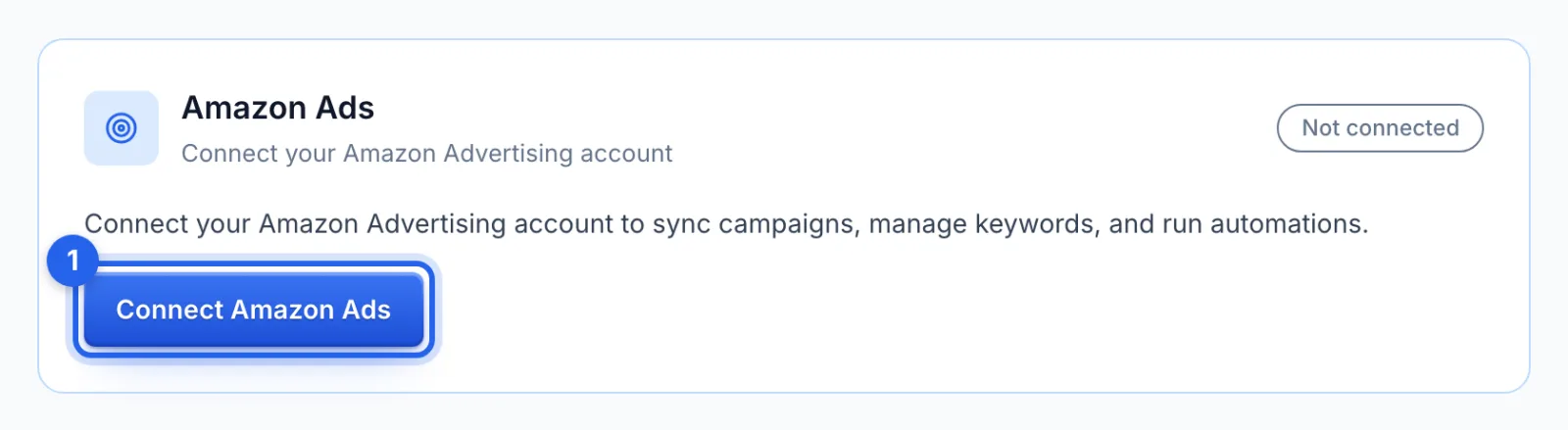
On the Amazon Ads card, click Connect Amazon Ads (1). Amazon asks you to sign in with the login that runs your ads and allow RedHen Labs, then sends you back to Settings. On the Review plan this is optional: it adds your ad spend to your profit.
Step 6 · Enable your advertising profile
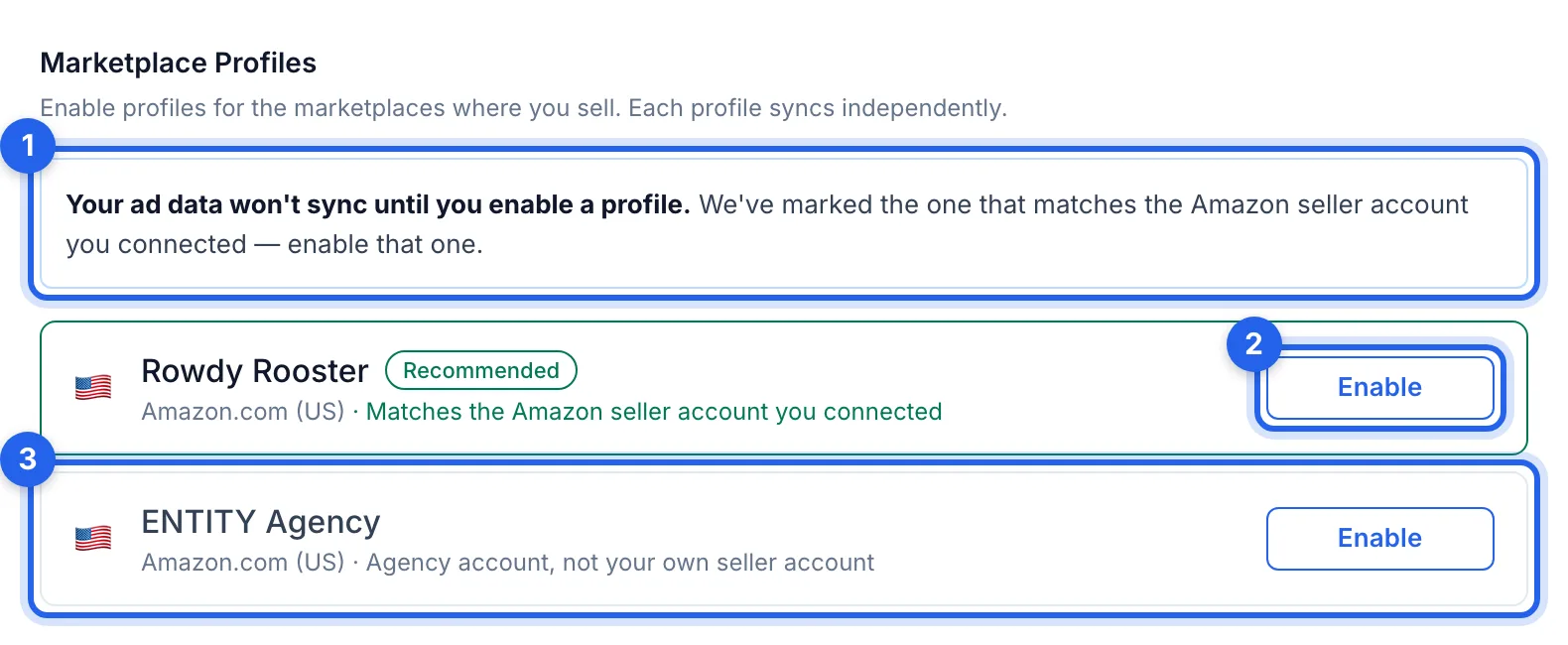
Amazon sends every advertising profile your login can reach, all switched off, so no ad data syncs until you choose (1). The one that matches the Seller Central account you connected is marked Recommended: click its Enable (2). A profile marked as an agency account (3) isn't your own seller account.
Step 7 · Let the first sync run
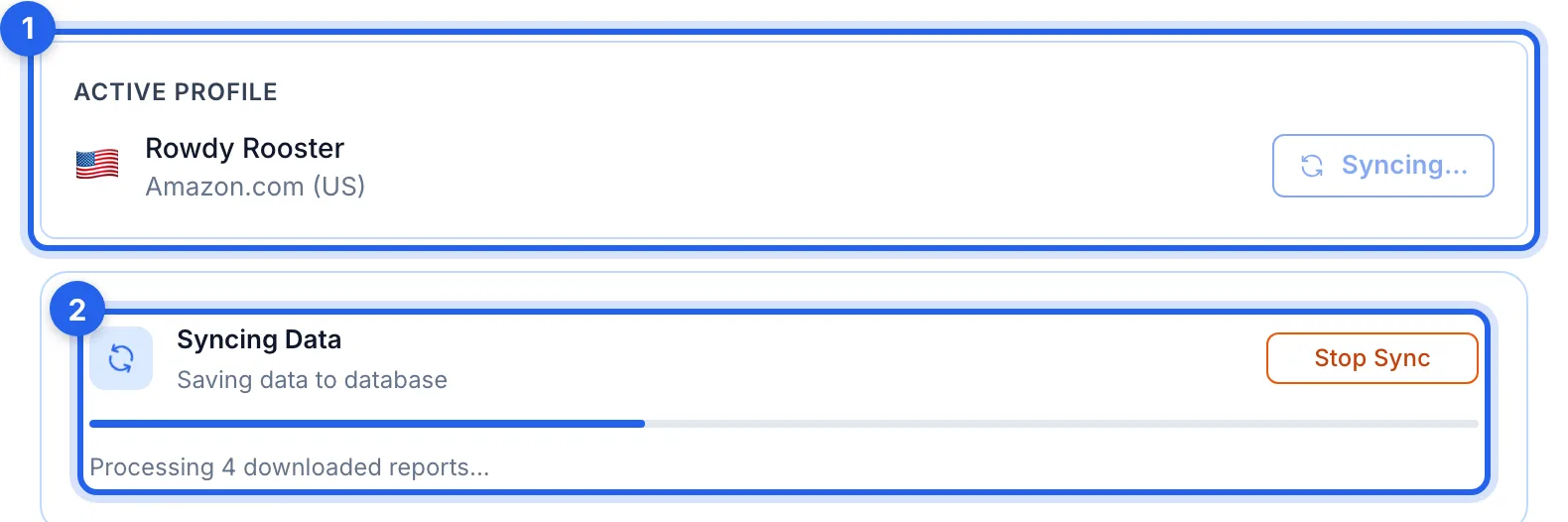
The profile you enabled shows at the top of the card (1), and its first sync brings in the last 90 days of campaigns and ad reports, with its progress below (2). You can leave the page; it keeps running. After that, both connections keep themselves up to date automatically.
Step 8 · Reconnect if Amazon's access expires
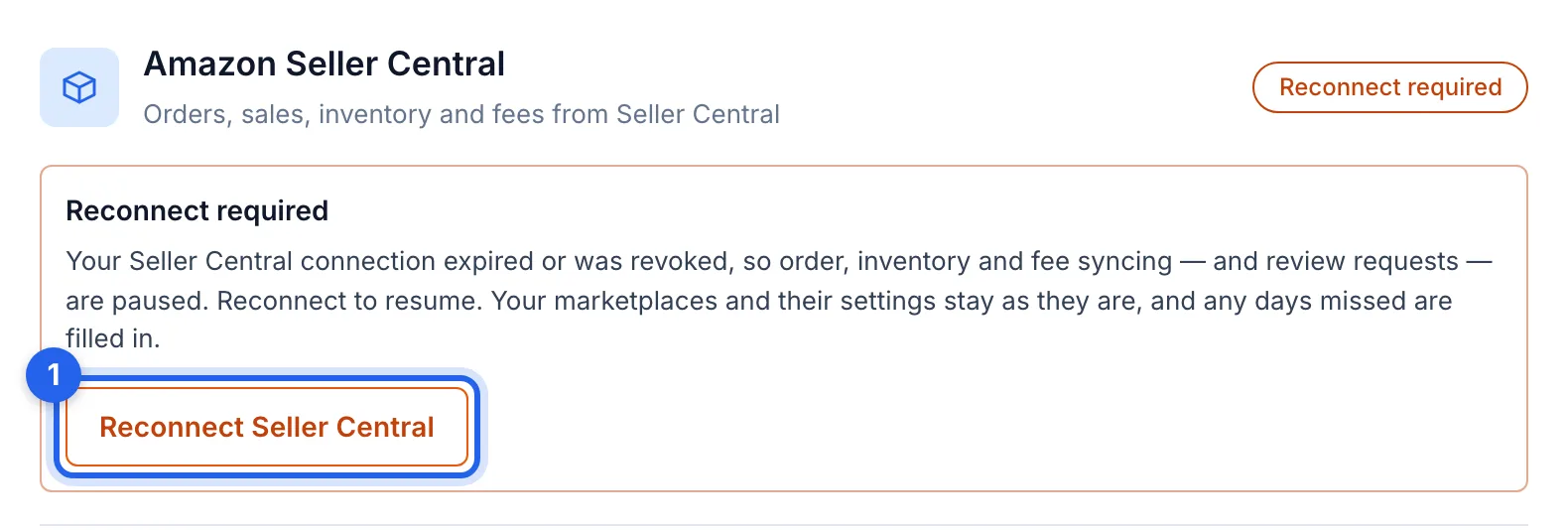
Amazon's access can expire or be withdrawn, and Amazon Ads asks for it to be renewed once a year (the Reauthorize button). The card then says Reconnect required: click Reconnect (1). Your marketplaces, profiles and their settings stay as they are, and the days missed are filled in.
Good to know
- Which plan needs which. The Review plan needs only Seller Central. Growth and Professional use both: Amazon Ads for everything to do with your ads, Seller Central for orders, profit and review requests.
- More than one marketplace. Enable each one you sell in, on both cards; switch between them with the button at the top of the page.
- Disconnecting. Disconnect on either card stops that connection's syncing (and, for Seller Central, review requests). If it is your last Amazon connection, Amazon's rules then require us to delete the Amazon data we've synced within 30 days, unless you reconnect before then.
Troubleshooting
- A marketplace is missing from Seller Marketplaces. Click Refresh Marketplaces, which asks Amazon again and adds any it finds.
- A marketplace is missing from Marketplace Profiles. Amazon Ads has a profile for each marketplace where your advertising account is set up. Set it up in Amazon's Campaign Manager, then click Reauthorize on the Amazon Ads card so the list is fetched again.
- Amazon says no advertising profiles were found. The login you used has no advertising account. Connect with the login that runs your ads, or set up advertising in Seller Central first.
- A marketplace says Amazon refused some reports. If it keeps happening, click Reauthorize on the Seller Central card.